To access our online booking website, please click on: https://saintbrigidsguild.ca/
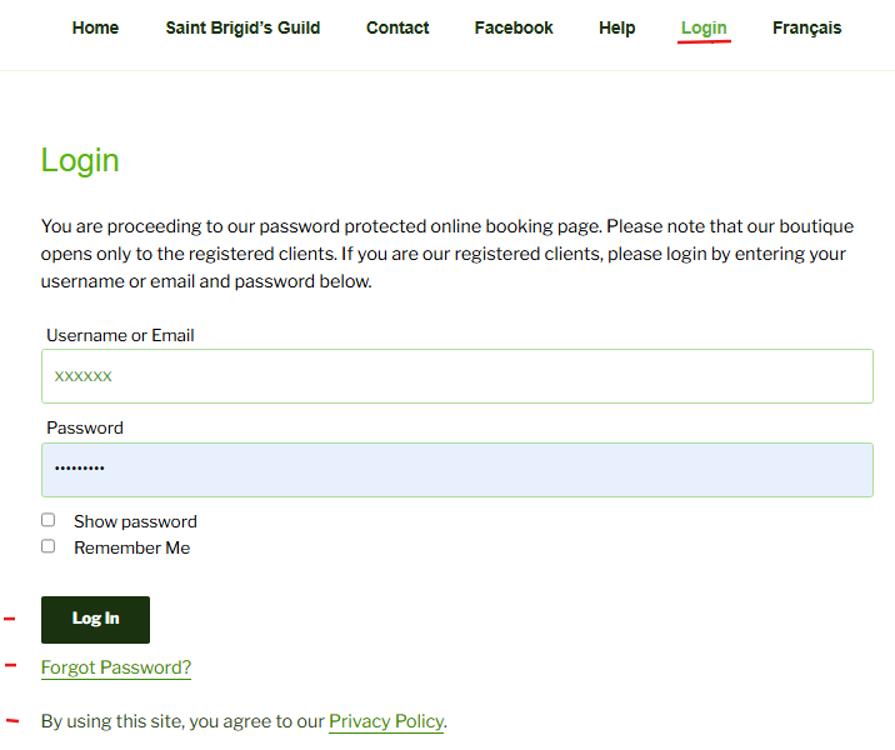
1. To login, click on “Login” from the main menu.
Enter your username or email address, and your password. Then, click on “Login” button.
If you use your email address to login, please note that the system only stores one email address that is unique per client. Thus, your email address must match the one that is stored in the system.
If you forgot your password or your password does not work, please click on “Forgot Password?”, or go to item 8 below to learn how to reset password.
It is important to note that by using this website, you agree to our Privacy Policy.
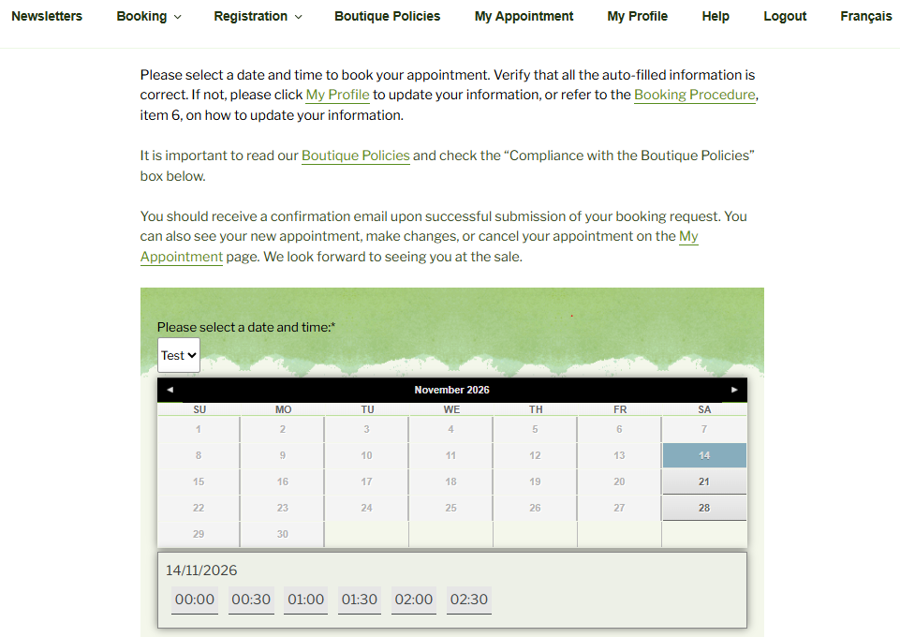
2. Once logged in, you will see the default booking page. Please take the time to read the guiding information shown on the page. Then, select a date and time.
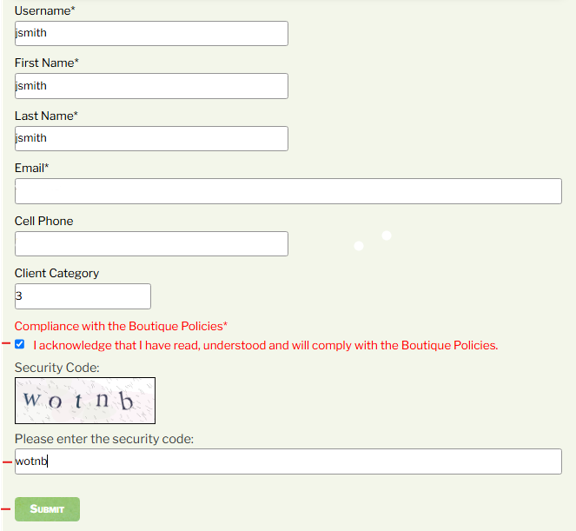
3. Your name, email address, and phone number will be automatically filled based on your profile information. Read the Boutique Policies and check the compliance box to acknowledge that you have read, understood, and will comply with the Boutique Policies. Then, type in the Security Code, and click on “Submit” button.
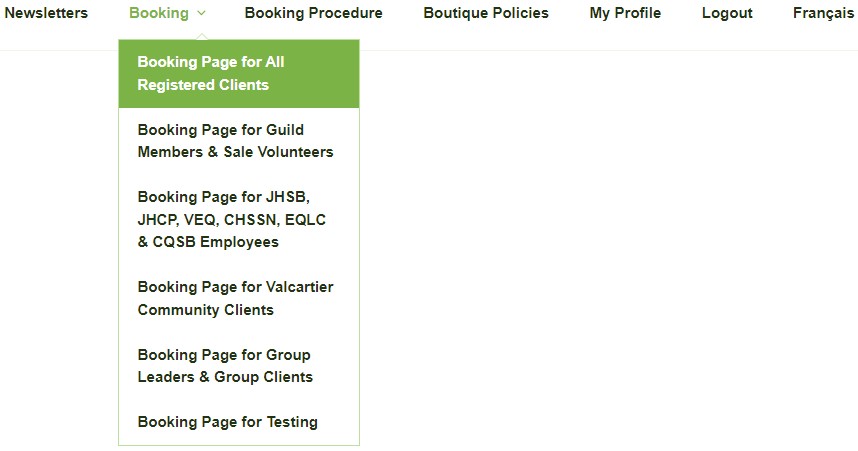
4. If you do not see the default booking page, you can navigate by moving your mouse to “Booking” at the main menu. A list of booking calendars will appear. Note that we only open one calendar to the designated client group at a time. Select the calendar that is accessible to you.
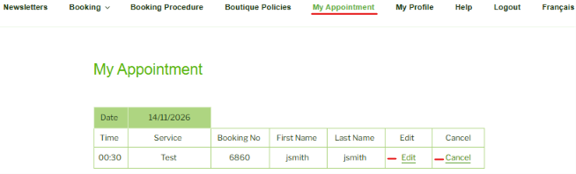
5. Up on the successful submission of your booking request, your appointment will be listed on the My Appointment page. You can change or cancel your appointment by clicking “Edit” or “Cancel” link below. You will also receive a booking confirmation by email and by text message provided that you have entered a cell phone number in the My Profile page.
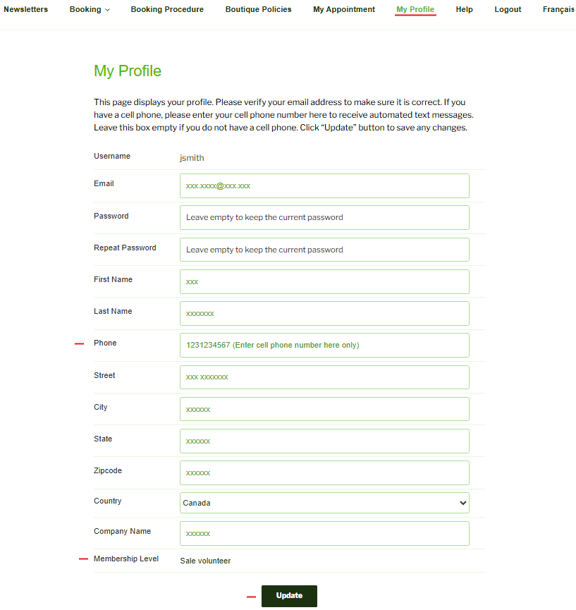
6. It is important that you keep your personal information privately and up to date. To update your information, go to My Profile page. Your email address and phone number will be used to receive automatic booking confirmations and reminders. Please enter only the cell phone number. Leave this box blank if you do not have a cell phone number. You can also change password here. Click “Update” button after any changes.
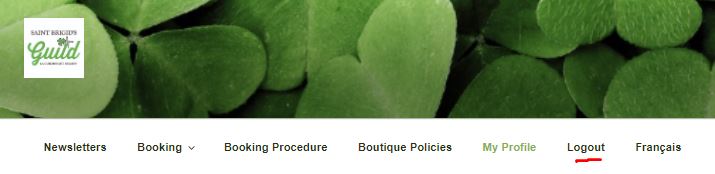
7. To logout, click “Logout” from the main menu.
8. If you forgot your password or your password does not work, click on “Forgot Password?”
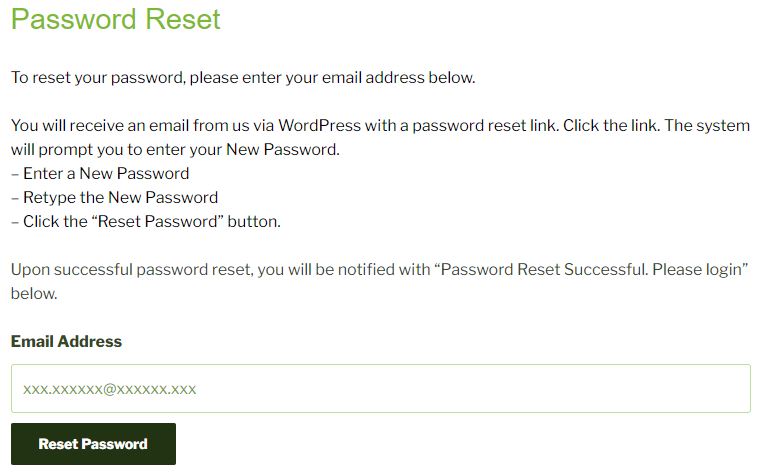
A Password Reset page will appear. Read the guiding information and enter your email address below, then click the “Reset Password” button.
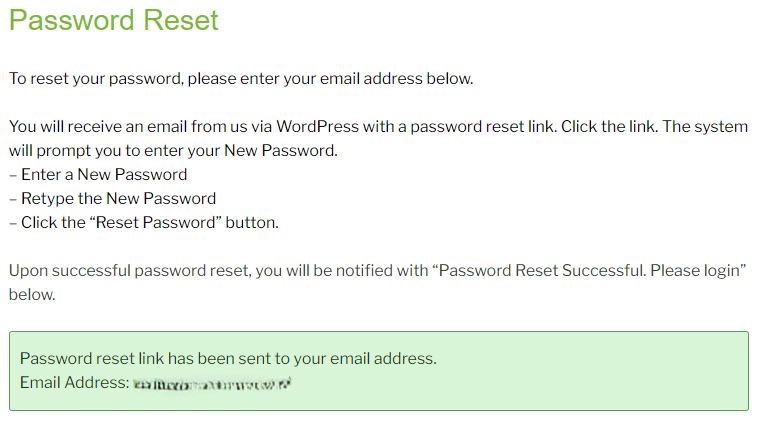
A notification will appear in green box below to notify you that a password reset link has been sent to your email address.
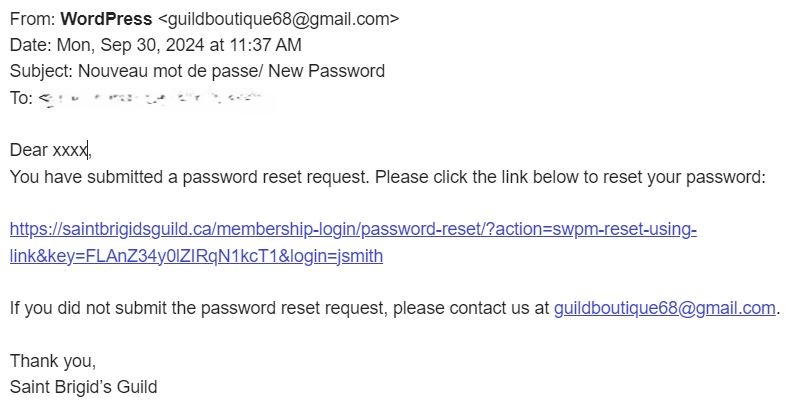
Check your email. If you cannot find the email in your inbox, please check your “Junk” or “Spam” folder. Click the password reset link from the email.
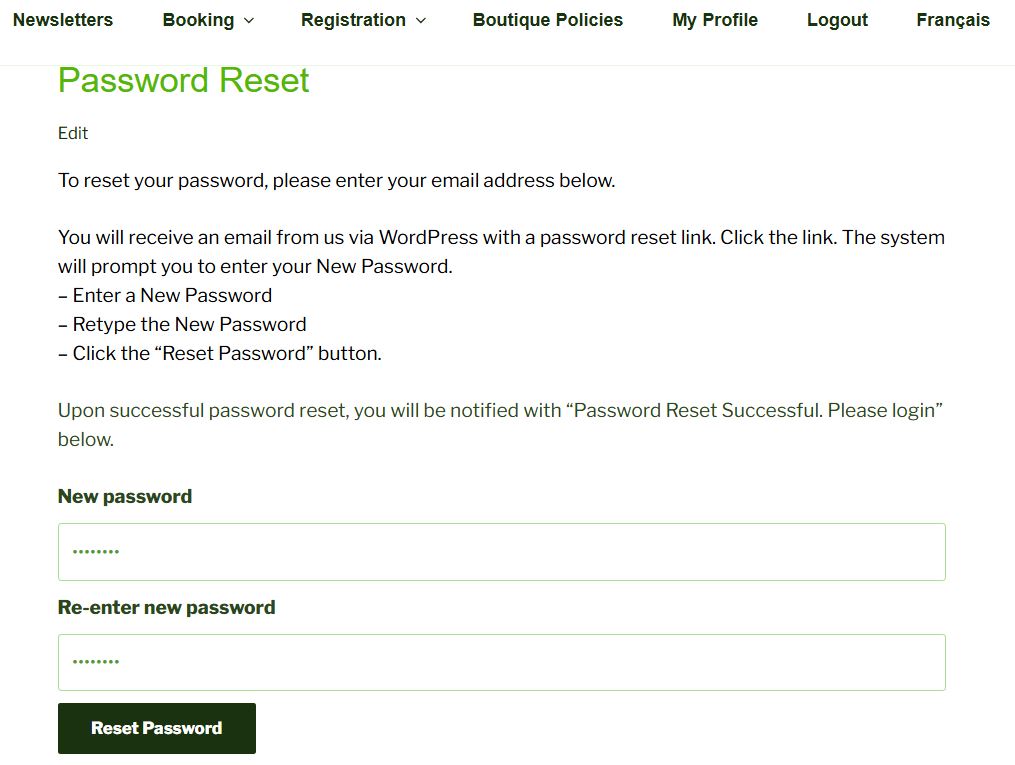
The “Password Reset” page will appear and prompt you to enter a new password and re-enter the new password. Then click “Reset Password” button.
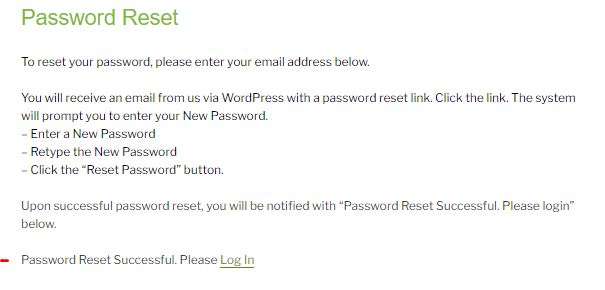
Upon successful password reset, a confirmation message will appear to confirm that your password reset has been completed successfully.